
Talkatone Web Version: How to Use It on a PC Browser
Install Talkatone App on Windows PC
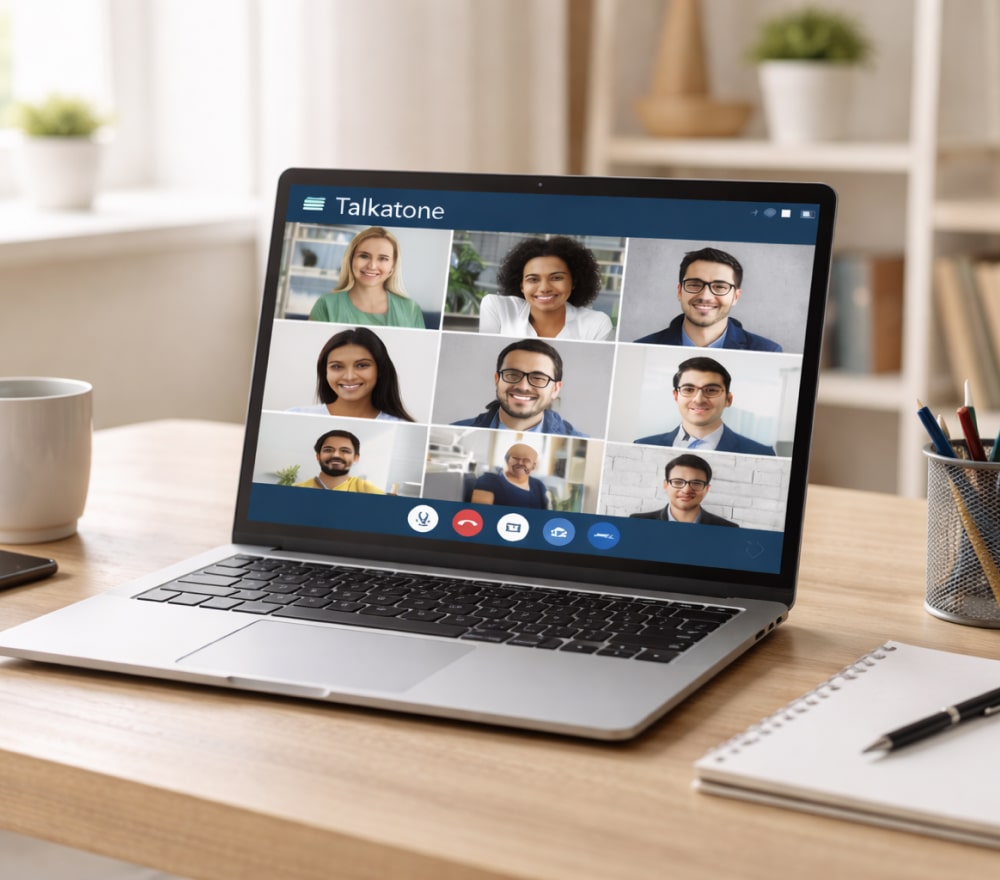
DownloadIf you’ve ever wondered whether there is a true Talkatone web experience, you’re not alone. Many users want the convenience of a browser tab instead of relying only on a phone. In reality, the idea of a full Talkatone web version is often mixed up with alternative ways of using the service on larger screens, which can lead to confusion when people expect a dedicated website interface.
Is There a Real Browser-Based Option?
When someone searches for web Talkatone, they are typically looking for a login page where calls and texts can be handled directly from Chrome, Safari, or Firefox. Tip: If you don’t see an official sign-in portal for messaging and calling, your best route is usually a supported workaround rather than an unofficial clone.
Common Ways People Use Talkatone “on the Web”
- Running the mobile app on a computer via an Android emulator.
- Using screen mirroring to control the phone from a desktop.
- Keeping the app on a tablet for a bigger interface without switching platforms.
If your goal is to get Talkatone web version functionality for quick typing and easy multitasking, these approaches usually deliver the closest equivalent while still keeping you in a familiar workflow.
Quick Start Checklist
- Decide whether you prefer an emulator (independent app session) or mirroring (your phone drives everything).
- Sign in as usual, then confirm your number and notification permissions.
- Test a call, send a text, and verify audio input/output devices.
Feature Expectations at a Glance
| Need | Best Approach | Why It Helps |
|---|---|---|
| Typing faster on a keyboard | Emulator or mirroring | Desktop keyboard support |
| Taking calls with a headset | Emulator with audio routing | Better control of input/output |
| Keeping phone and PC in sync | Mirroring | Single session on your device |
| Low resource usage | Mirroring | Emulators can be heavy |
A Simple “Web-Style” Setup Guide
This Talkatone app web edition guide focuses on getting a browser-like workflow without relying on questionable downloads or unofficial sites.
Option A: Android Emulator
- Install a reputable emulator, then add Talkatone from the Google Play Store.
- Open the app, sign in, and confirm microphone permissions.
- Set the emulator audio device to your preferred headset or microphone.
Option B: Screen Mirroring
- Enable a trusted mirroring method on your phone and computer.
- Keep the device unlocked during initial setup so permissions prompts appear.
- Use your PC keyboard for typing while the phone handles the connection.
Troubleshooting: Most Frequent Issues
- No sound on calls: Check the selected input/output device in your system settings and within the emulator.
- Messages arrive late: Ensure notifications and background activity are allowed for the app.
- Can’t verify account: Confirm the network is stable and try switching between Wi-Fi and mobile data.
If your main objective is using the Talkatone app on web in a way that feels native, mirroring usually wins for simplicity, while an emulator is better when you want a separate, self-contained workspace.
Safety Notes to Avoid Bad Downloads
- Skip “browser-only” installers from unknown websites.
- Prefer official app stores and well-known software publishers.
- Don’t enter credentials into pages that mimic a sign-in screen without clear legitimacy.
For people who specifically want a web Talkatone app layout, the safest path is to replicate the experience through supported tools rather than trying to force a questionable web portal.
Bottom Line
You can still get a smooth desktop workflow even if you don’t find a dedicated web interface by choosing the method that matches your priorities: mirroring for convenience or emulation for a more independent setup.